Deploying MinIO Storage
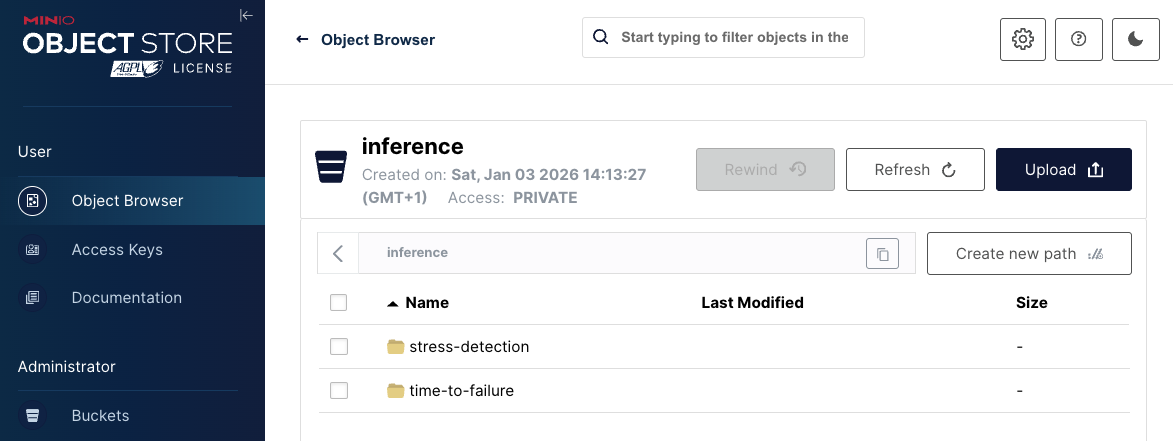
In this section, we will deploy MinIO storage as the first component within our autonomous vehicle. MinIO will serve as our object storage solution, providing the inference bucket, that is used to store the AI models used for battery monitoring - initially base models that we provide, and later the retrained models from our SNO instance. Inside this bucket we have two different folders:
-
stress-detection: Stores the AI model used to detect stress conditions in the battery. The base model that will be deployed when the MinIO instance is created comes in an OpenVINO IR format, consisting in two different files (.xml and .bin) in the
/stress-detection/1/path. -
time-to-failure: Stores the AI model used to generate time-to-failure predictions. The base model that will be deployed when the MinIO instance is created comes in an OpenVINO IR format, consisting in two different files (.xml and .bin) in the
/time-to-failure/1/path.
Deploying MinIO using GitOps
We will use GitOps to deploy MinIO in our autonomous vehicle. GitOps is the preferred method for deploying workloads at the edge, as it provides version control over what’s running on the vehicle and ensures alignment between the repository code and the deployed components.
The first step is to create a GitOps application project that will group all the resources we deploy in this demo.
Step 1: Create GitOps Application Project
Create the following GitOps application project by applying this configuration:
oc apply -f - <<EOF
kind: AppProject
apiVersion: argoproj.io/v1alpha1
metadata:
  name: default
  namespace: openshift-gitops
spec:
  clusterResourceWhitelist:
  - group: '*'
    kind: '*'
  destinations:
  - namespace: '*'
    server: '*'
  sourceRepos:
  - '*'
EOF
Step 2: Create GitOps Application
Now that we have the project, we will create our GitOps Application that will be responsible for checking the files in our GitOps repository and deploying the different components necessary for MinIO.
Apply the GitOps Application:
oc apply -f - <<EOF
apiVersion: argoproj.io/v1alpha1
kind: Application
metadata:
  name: minio-microshift
  namespace: openshift-gitops
spec:
  destination:
    name: ''
    namespace: ''
    server: https://kubernetes.default.svc
  source:
    path: bootstrap/minio-microshift/groups/dev
    repoURL: https://github.com/rhpds/ai-lifecycle-edge-gitops.git
    targetRevision: main
  sources: []
  project: default
  syncPolicy:
    automated:
      prune: true
      selfHeal: true
EOF
The GitOps Application will deploy the following components for MinIO storage:
-
Namespace: A dedicated minio namespace that will contain all MinIO-related resources, providing isolation and organization for our storage components.
-
Deployment: The MinIO application deployment that runs the MinIO server instance, configured to provide object storage capabilities for our autonomous vehicle.
-
Service and Route: A Kubernetes service and route that expose the MinIO dashboard, allowing us to access and manage the storage through a web interface.
-
Persistent Volume Claim (PVC): Provides persistent storage space that will be used by the MinIO bucket to store both AI models.
-
Bucket Creation Script: An initialization script that automatically creates the required inference bucket.
-
Model Download Script: A script that downloads and stores our two baseline AI models from the GitHub repository:
-
Stress-detection model for identifying battery stress conditions
-
Time-to-failure model for predicting remaining battery life
-
To verify that the deployment is progressing correctly, you can monitor the status of the pods:
watch oc get pods -n minio|
You can exit the watch command by pressing Ctrl+C in your keyboard. |
When the pods show Running and Completed status, it means that MinIO has been successfully deployed and is ready to use.
Step 3: Access MinIO Dashboard
Once the deployment is complete, you can access the MinIO dashboard through your web browser:
https://minio-microshift-001.{openshift_cluster_ingress_domain}Use the following credentials to log in:
-
Username:
minio -
Password:
minio123
The dashboard will allow you to verify that the inference bucket has been created and that the baseline AI models have been properly downloaded and stored. Check if the inference bucket contains two folders: one containing the base Stress-Detection model and the other containing the Time-to-Failure initial model.