Create a Model Serving platform
Although the AI models are already running and serving predictions in the autonomous vehicle, we can also deploy a model serving platform in our RHOAI environment on SNO. This allows us to perform inference against the models directly from the re-training environment, which is useful for validating that the models work correctly after training.
KServe offers two deployment modes: Serverless and RawDeployment. During the RHOAI installation, we chose RawDeployment, which is often preferred in cases where simpler, more manual configurations are desired. RawDeployment mode provides full control over Kubernetes resources, enabling detailed customization and configuration of deployment settings without relying on Knative, and therefore, without features like auto-scaling.
In this section you will learn how to set up Red Hat OpenShift AI on Single Node OpenShift to make use of the mentioned RawDeployment model serving to interact with the AI models.
Stress detection model
-
Go back to our Red Hat OpenShift AI Dashboard and make sure you are still inside the
ai-edge-projectproject. -
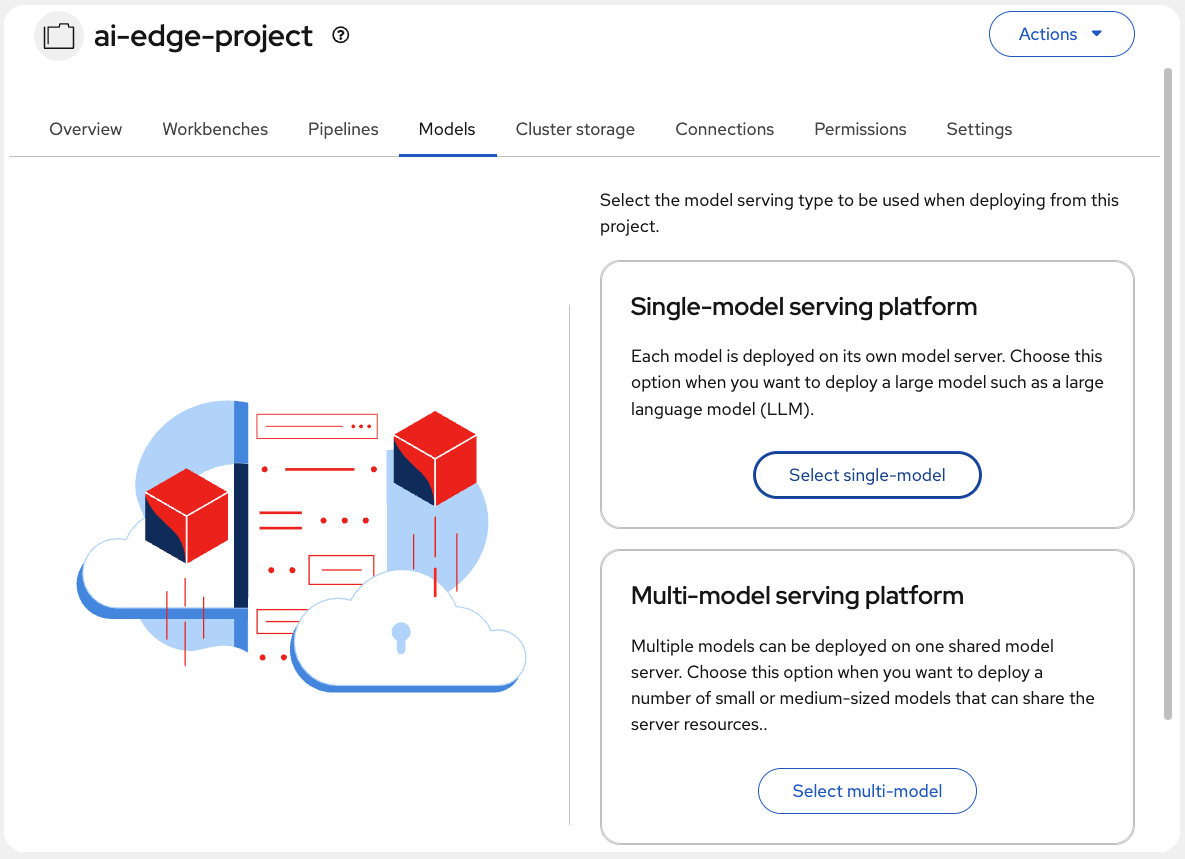
Navigate to the Models tab.
-
Locate the Single-model serving platform option and choose Select single-model.
-
This option deploys an associated model server for each model. Click on Deploy model.
-
Complete the following fields in the form:
-
Project: The
ai-edge-projectnamespace should be already selected by default. -
Model deployment name: Type the name for the model server. I will use
Stress Detection. -
Serving runtime: There are different runtimes to choose. I will use the
OpenVINO Model Server; optimized for Intel architectures. -
Model framework: Select the format in which the model was saved. Our model was saved in
openvino_ir - opset13format. -
Model server replicas: Choose the number of pods to serve the model. Just
1should be okay in our case. -
Model server size: Assign resources to the server. Our model is quite simple, so
Smallwill be enough. -
Check the Existing data connection box, if it is not already selected.
-
Connection: Here the
vehicle-modelsDataConnection should appear. -
Path: Indicate the path to your model location in the S3 bucket. That’s:
stress-detection.We didn’t specify the full path to the model because KServe will automatically pull it from the /1/ subdirectory in the path specified.
-
-
When configured, click on Deploy.
At that moment, new ServingRuntime and InferenceService resources will be created in your node. In the Models tab, your new Model Service should appear. Wait until you see a green checkmark in the Status column. Also, check the Internal endpoint details to show the model inference API where to make requests to.
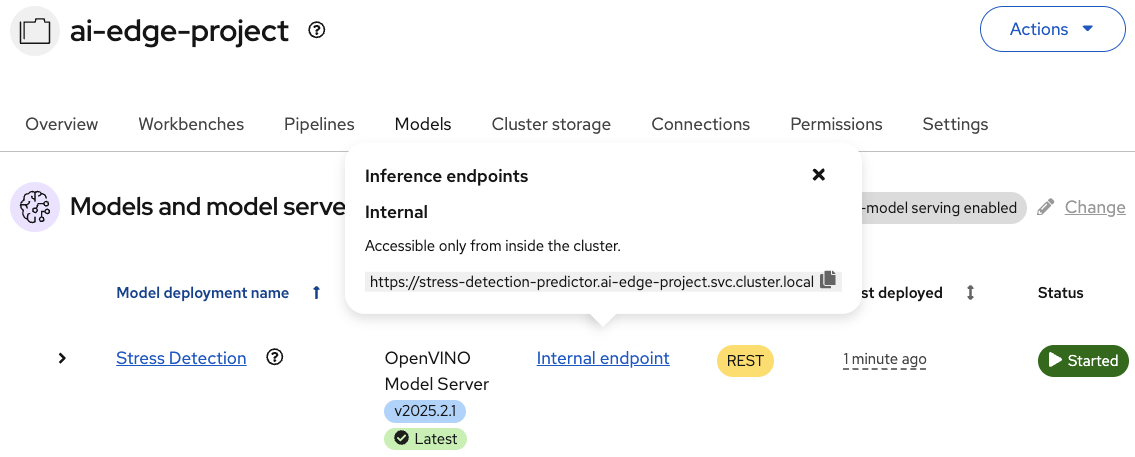
As a result, the model is available as a service and can be accessed using API requests.