Creating our firsts AI models
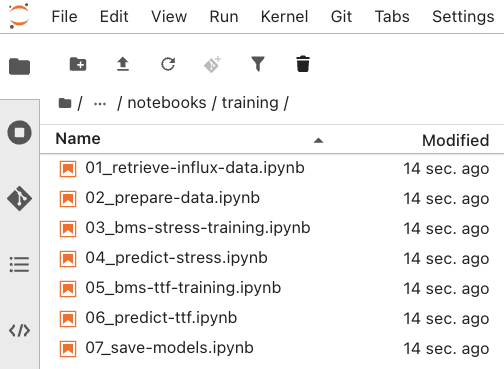
Now it’s time to create, train and store our firsts AI models. We will use the Notebooks that we just imported for it. To do so, navigate to the ai-lifecycle-edge-gitops > notebooks > training folder. All of them are ordered as shown below:
-
01_retrieve-influx-data.ipynb: Retrieves the battery data from InfluxDB and saves it.
-
02_prepare-data.ipynb: Modifies the raw dataset to make them available for training.
-
03_bms-stress-training.ipynb: Trains the Stress Detection model and saves it localy.
-
04_predict-stress.ipynb: Validates the Stres Detection model performance with new data.
-
05_bms-ttf-training.ipynb: Trains the Time to Failure model and saves it localy.
-
06_predict-ttf.ipynb: Validates the Time to Failure model performance with new data.
-
07_save-models.ipynb: Uploads the new models to the s3 MinIO bucket.
To run the Notebook, first open in order each file and press the Play button at the top to manually run each cell or the Double Play icon to run the entire file.
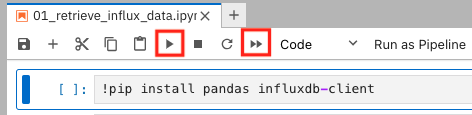
At this point, you can follow the instructions contained in each Notebook. Those will explain each step in detail. Pay attention to some of the variables used during the execution. You will need to replace some of them based on your environment. For example, in the first notebook you will need to replace the InfluxDB URL with yours:
https://influx-db-microshift-001.{openshift_cluster_ingress_domain}Once you have run all of them, the new AI models should have been uploaded to the vehicle’s MinIO storage and are now being used by the Battery Monitoring System for real-time stress detection and time-to-failure predictions.