Create a workbench
Inside the new project, we can create different components. One of them, and probably the most important one when it comes to model training, will be the Workbench. A workbench is a containerized workspace that operates within a pod and contains a collection of different AI/ML libraries and a JupyterLab server.
-
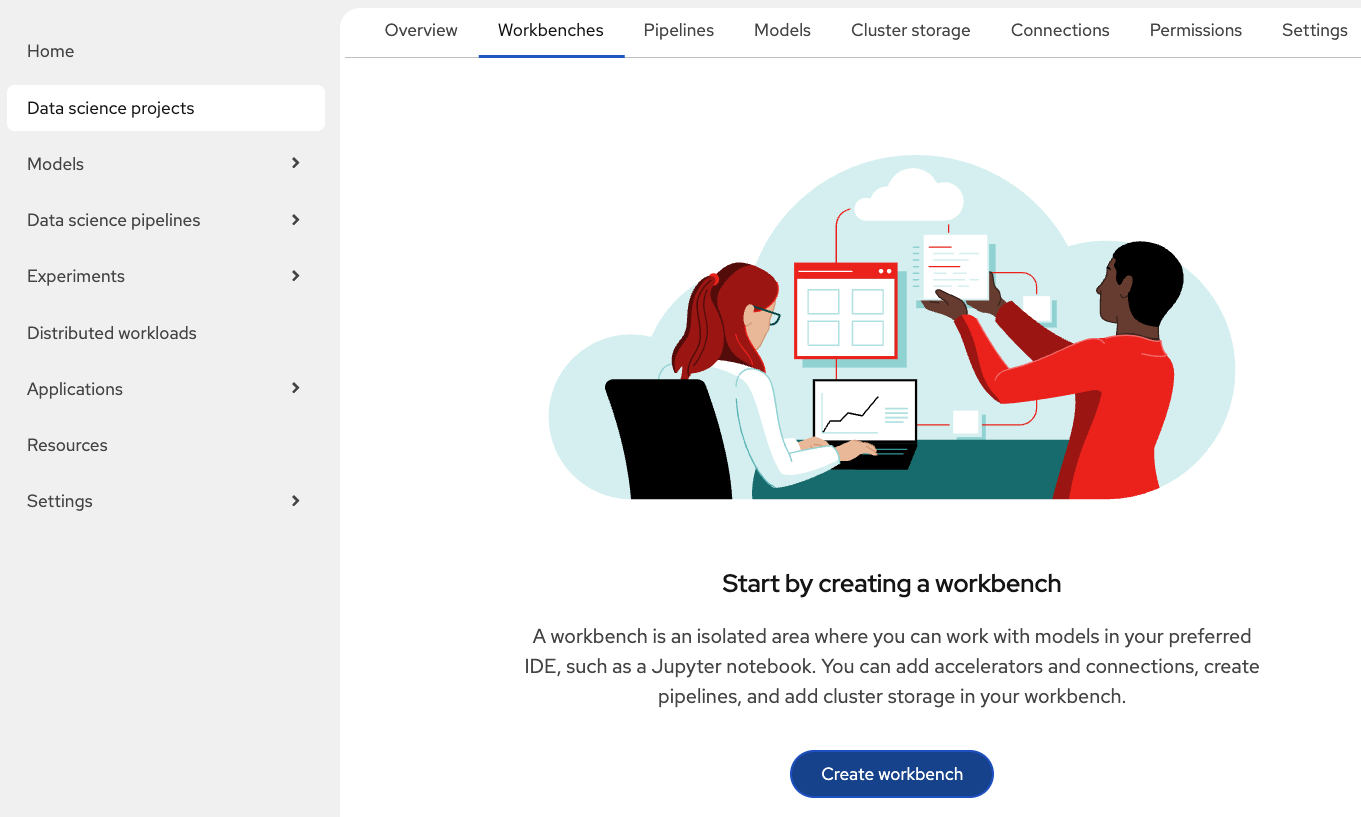
There are different tabs inside our project page. Click on Workbenches.
-
On there, select the Create workbench button to open the configuration window.
-
Complete the fields as follows. You will see that there are plenty of different configurations depending on your model and environment specifications:
-
Name: Type your preferred name. I will use
model-training. -
Image selection: the election will depend on the model requirements. Click on View package information to see the packages included. Our model will use
Jupyter | TensorFlow | CUDA | Python 3.12. -
Version selection: The recommendation is to use the latest package versions. That will be the
2025.2version. -
Container size: we can select the resources assigned depending on our hardware: number of CPUs, memory, and request capacity of the container. In this case, the
Smallsize is enough. -
Make sure a persisten volume called
model-training-storageis going to be created with20GB. -
Under connections, select Attach existing connections. Verify that the
vehicle-modelsconnection is selected and click Attach.
-
-
Review your configuration and press Create workbench. This last step will trigger the workbench creation.
-
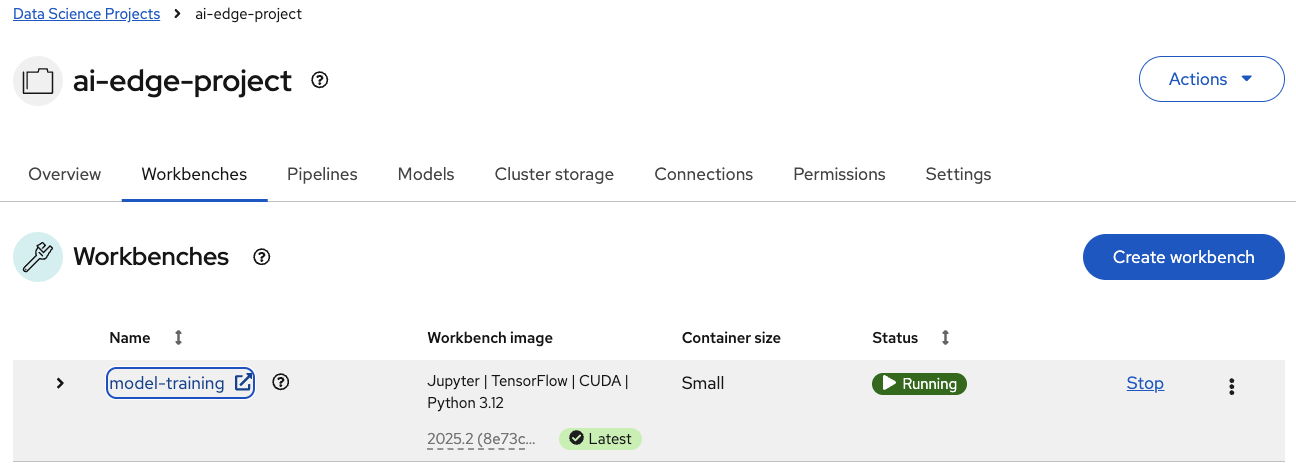
You will be automatically redirected to another page where you can track the workbench deployment process. Wait until the Status shows Running and click model-training.
-
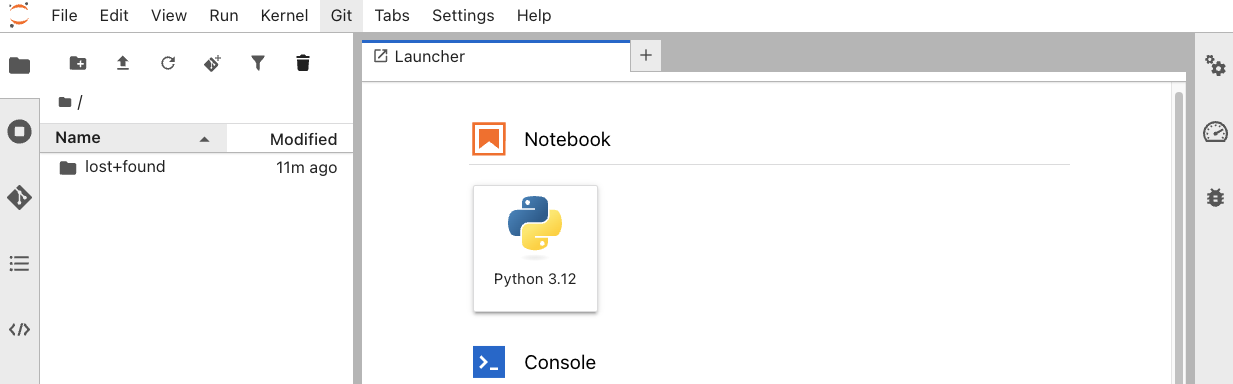
A new tab will open. Enter again your OpenShift credentials to authenticate to the workbench’s JupyterLab platform.
-
User: {openshift_cluster_admin_username}
-
Password: {openshift_cluster_admin_password}
-